
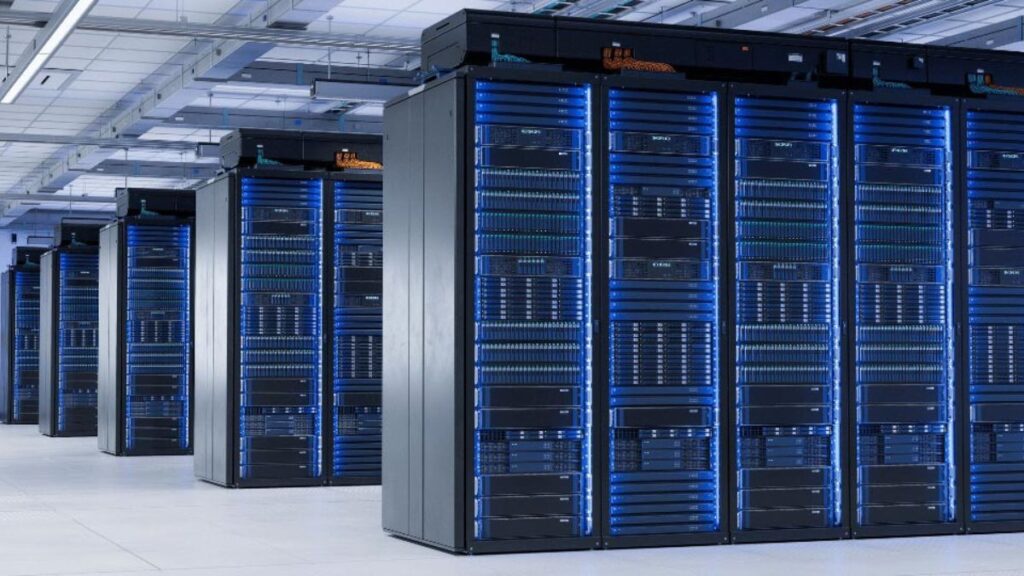
GPU servers are major investments, and proper sanitization keeps their value intact. Used GPU servers hold more market value when sellers stick to these best practices. Consider sanitization an investment instead of a cost; time spent preparing your hardware pays off through better returns and less liability.
The secondary market for GPU infrastructure keeps growing as organizations look for affordable computing solutions. Your old systems become another company’s chance to grow. Good sanitization creates benefits for everyone: you keep your data safe while providing quality, ready-to-use hardware to the next owner.
It’s worth mentioning that GPU sanitization is different from standard drives because of their specialized memory architecture. The process might take time, but cutting corners creates serious security risks. Your data needs better protection than that.
Best Practice 1: Back Up and Document System Configuration
You need proper backup and documentation before starting any sanitization process for your used GPU servers. This step helps you keep your valuable configurations safe and protects you if something goes wrong.
Create A Full System Snapshot
System snapshots act as your first defense line to prepare GPU servers for resale. These snapshots capture the entire system state at a specific moment, unlike regular backups.
Windows-based GPU servers can use the Volume Shadow Copy Service (VSS) to create application-consistent snapshots. The snapshots capture data after completing all application transactions and flushing pending writes to disk. Your data stays intact without stopping instances or detaching disks from virtual machines.
Here’s how to create a VSS snapshot on Windows systems:
- Install the Microsoft Sync tool on your Windows VM
- Stop applications from writing to disk temporarily
- Open an elevated command prompt
- Run the sync command with your drive letter (e.g., sync F:)
- Create the snapshot using gcloud compute snapshots create with the –guest-flush flag
Incremental backups cut down both costs and time compared to full backups. They only capture changes since your last backup, which makes them perfect for regular documentation.
You should set up automated backup schedules. One way is to configure your system to upload configuration files after each write operation:
configuration auto-upload remote-url “scp://username:password@server/path/to/upload/to”
Another option is to create periodic backup jobs that run at set intervals (e.g., every 18 hours). Automation eliminates human error and builds a consistent documentation trail.
Record Hardware And Software Specs
A complete documentation of your GPU server’s configuration builds buyer confidence and boosts resale value. Detailed documentation shows professional management at the time of selling a used GPU.
Start by recording these significant hardware specifications:
- GPU model and quantity
- CPU cores (minimum 2 cores per worker node)
- Memory capacity (minimum 4GB per worker node)
- Storage specifications (size, type, tier)
- Network interface details
- Physical condition assessment
The software configuration should include:
- Operating system version (Linux distributions supported by both Kubernetes and NVIDIA GPU Operator)
- Driver versions
- Firmware revisions
- Installed software packages
- Any custom configurations
Kubernetes environments need extra documentation. NVIDIA Run: AI clusters support multiple distributions like Vanilla Kubernetes, OpenShift, and various managed Kubernetes services for GPU servers in such environments.
Simple server configurations also need documentation. Each server should have at least one block storage device for the operating system.
Good documentation helps potential buyers understand what they’re buying and gives you a reference point for post-sale questions. Backup snapshots also let you deploy similar configurations quickly in the future.
Many organizations skip this vital step. They lose valuable configuration data and must rebuild environments from scratch after hardware changes. The time you spend on documentation today saves hours tomorrow.
Documentation works like a “birth certificate” for your GPU servers. This history adds value throughout its lifecycle and helps boost resale value when selling used server GPUs.
Best Practice 2: Remove All User Data and Credentials
Data remnants in GPU servers work like digital fingerprints that stick around long after you’ve moved on. You need to target both operating system drives and user authentication mechanisms to sanitize data properly.
Wipe OS Drives Securely
Just formatting drives or deleting files won’t cut it when you’re preparing used GPU servers to sell. These actions only mark space as ready for new data while keeping the original information intact until something writes over it.
You need multiple-pass overwriting techniques to sanitize properly. Tools like shred write random data over hard disks several times and finish with a zero pass. A single zero pass works fine for most business uses, but multiple passes give you extra security.
Here are some proven methods you can try:
- DBAN (Darik’s Boot and Nuke) – Boots from external media to completely wipe storage devices
- DD Command – A Linux utility that performs low-level overwrites (dd if=/dev/zero of=/dev/sdX bs=1M)
- ATA Secure Erase – Makes use of built-in disk commands that NIST accepts as enough for “purge level” sanitization
- Cryptographic Erasure – Changes to the encryption key make all data unreadable instantly on self-encrypting disks
Modern PowerEdge servers in enterprise environments support secure erase through the Lifecycle Controller.
This feature:
- Makes use of cryptographic erasure for compatible drives
- Gives you documented evidence of sanitization
- Creates logs that verify successful completion
Note that even dead computers need proper sanitization before you throw them away. The risks stay high, whatever the system’s condition. Specialized recovery tools can still access data remanence (residual information).
Clear User Accounts And SSH Keys
User accounts and authentication credentials often slip through the cracks during sanitization. These small details can give backdoor access to systems you thought were “clean.”
Default system accounts need attention first. NVIDIA systems come with preset admin accounts using default passwords that create serious security risks.
NVIDIA OS systems include, by default:
- An admin account (default password: “admin”) with sudo privileges
- A monitor account (default password: “monitor”) with read-only access
You should remove or reset credentials for all these accounts before transferring ownership of used GPU servers.
SSH keys don’t have an automatic removal option.
You’ll need to delete them manually:
- Connect to your server via SSH
- Open the authorized_keys file: nano ~/.ssh/authorized_keys
- Remove lines containing unwanted keys (each key starts with ssh-rsa or similar)
- Save the file
Cloud environments require verification on both the console and the server, since keys can exist in multiple locations. Removing keys from management consoles doesn’t automatically clear them from servers.
If you want to maximize resale value for your used GPU servers, contact Big Data Supply. They can help you make better selling decisions. They can offer higher prices when you provide documented proof of a full-scale benchmark and stress test of the used GPU.
Thorough testing and validation before the sale shields you from future liability related to hardware failure or poor performance claims and ensures the GPU’s operational health and capacity are accurately represented.
Best Practice 3: Reset GPU Firmware and BIOS Settings
Firmware is often overlooked during the sanitization of used GPU servers for resale. Many organizations wipe drives but ignore the significant firmware layer.
Use Vendor Tools To Reset Firmware
GPU manufacturers provide specialized tools for safely managing firmware. NVIDIA’s Mellanox Firmware Tools (MFT) package lets you query firmware information, generate custom firmware images, and burn new firmware onto devices.
These tools are a great way to get GPUs back to factory conditions by removing custom configurations and potential security risks.
The NVIDIA GPU UEFI Firmware Update Tool checks if firmware updates are needed and provides update options. This versatile tool works with both Founders Edition and partner cards.
Before you run firmware tools:
- Close all applications on the system
- Verify no OS updates are pending in the background
- Disconnect unnecessary peripherals
- Document current firmware versions for reference
Blank screens might appear during the firmware process. You can try changing boot mode from UEFI to Legacy/CSM or boot using alternate graphics. Sometimes the display issues resolve after your operating system loads with the graphics driver installed.
AMD GPUs can use solutions like vendor-reset, which provides a kernel module to reset hardware devices for re-initialization. This helps GPUs with complex reset procedures that default reset methods don’t deal with very well.
Reflash BIOS if Needed
Sometimes a reset isn’t enough – you need a complete BIOS reflash. ASUS tools like WINFLASH DEFAULT BIOS TOOL update VBIOS to the latest version to improve compatibility. Their E MODE BIOS FLASH TOOL updates VBIOS to Efficiency mode for better power efficiency.
Warning: Never shut down, reset the system, or terminate the process when VBIOS is updating. Your system might not boot properly afterward.
The NVflash tool helps flash different BIOS versions on NVIDIA GPUs.
The process needs:
- Downloading the correct BIOS for your specific GPU model
- Running Command Prompt as administrator
- Using the –list argument to identify assigned GPU numbers
- Executing the flash command with appropriate parameters
A proper BIOS reset removes configuration remnants that could compromise security or show previous usage patterns. It wipes the GPU’s memory at the deepest possible level.
These buyers understand firmware sanitization requirements and can guide you based on your hardware.
The last step involves testing the GPU with diagnostics to verify proper operation. This check assures both sellers and potential buyers that the hardware works correctly after sanitization.
Best Practice 4: Clean GPU Hardware Physically
Physical cleaning plays a crucial role alongside digital sanitization when you prepare your used GPU servers to resell. Your hardware’s value in the secondary market could drop if dust clogs the components and affects their performance and lifespan.
Remove Dust And Debris From Fans And Heatsinks
GPU fans typically work in a semi-passive mode and spin only under load. This design keeps noise levels low but makes cleaning really important. You should power down all systems and disconnect power sources before starting.
Here are the safe cleaning steps to follow:
- Keep fan blades still while cleaning – spinning them can create harmful static electricity
- Use compressed air in short bursts through the GPU shroud vents
- Stay away from vacuum cleaners as they pose static discharge risks
- Get a soft brush to clean stubborn dirt in hard-to-reach spots
- Keep your fingers away from chips or contacts since oils can harm components
- Never pour alcohol directly onto PCB components
“Dust accumulation can impede cooling,” note enterprise maintenance experts. Data center GPUs might fail unexpectedly and have shorter lifespans because of this issue.
Fan blades often collect sticky dirt that leads to rough operation or complete failure. You can use a cotton swab with a light coating of isopropyl alcohol to clean specific areas. The components need to dry completely before you reinstall them.
Regular cleaning schedules work best in enterprise environments. Many newer cards come with a “fan idle model,” which helps blow out dust, but this passive feature alone won’t keep your used server GPUs clean enough.
Inspect For Physical Damage Or Corrosion
Take time to look for signs of wear or damage after cleaning your GPU hardware.
Watch out for these common problems:
- PCBs with bends can cause failures that might slip through basic testing. You should also check die edges and corners where cracks usually show up. Even small dents can hurt performance during heavy loads.
- Corrosion poses a serious threat to both performance and reliability. Your routine checks should look for “early signs of corrosion, such as discoloration or rust”. GPUs from coastal areas or high-humidity environments need extra attention.
- Organizations that want to get the most value when selling used GPU servers from Big Data Supply should show that their hardware was well-managed through proper cleaning.
- Note that cleaning might not be enough on its own. Some buyers prefer to replace thermal paste after purchase – a reasonable step to take. Your main goal is to present hardware that looks well-maintained throughout its service life and passes visual inspection.
Final Words:
Technology moves faster each year, making equipment turnover inevitable. But this fact doesn’t mean you should compromise on security. Make these practices your standard for all hardware transitions. You’ll rest easier knowing your data stays safe, no matter where your old servers go.
Documentation is the key to success. From sanitization certificates to test results, complete documentation proves you’ve done everything right. This paperwork builds buyer trust and guides you to better resale prices.
Physical maintenance plays a key role, too. Clean your components with care and check for damage before running extensive performance tests. These tests confirm your hardware works correctly and provide performance metrics that boost buyer confidence.